
How to set up digital signage with Android TV

Turn an Android TV, Google TV or Android box into a digital signage player with the MIA Player APK. Installation, pairing, autostart permissions, offline playback and troubleshooting in one guide.
Android TV is one of the easiest ways into digital signage. If your display runs Android TV or Google TV, you need no extra hardware; otherwise an Android box on the HDMI port does the job. This guide covers installing the MIA Player APK, pairing the screen with your panel and setting the device up to run on its own, with a troubleshooting table at the end.
Before you start
- A running MIA server. Either the Windows desktop app or a Linux server. All you need is its address: your domain, for example
https://signage.example.com, or an IP address in local network mode, for examplehttp://192.168.1.10. The server options page explains the choices. - An active licence. The trial runs for 30 days and covers 5 screens by default.
- An Android device: a TV with Android TV built in, a Google TV, an Android box or a tablet.
- A network connection that lets the device reach the server. Use wired Ethernet wherever you can.
- A program ready to play, so the screen shows content as soon as it is paired.
Step 1: choose the right device
For MIA Player, what matters more than the Android version is the version of Android System WebView, the component the player uses to draw content. An up-to-date WebView is recommended. On older WebView versions images and videos usually play fine, but YouTube and web page items cannot be relied on.
You can check the WebView version in the app list under Settings, often after choosing to show system apps. On devices with the Play Store, WebView is updated from there. Some boxes without the Play Store are stuck with whatever version they shipped with, so ask before you buy.
| Device | Strength | Watch out for |
|---|---|---|
| TV with Android TV built in | No extra box or cables | The TV's energy saving and auto standby settings |
| Google TV | Usually a recent Android and WebView | Ambient mode and the screensaver must be off |
| Android box | Fits any HDMI screen, most have an Ethernet port | The WebView version and whether it can be updated |
| Tablet | Handy for desks and small spaces | Running on constant power, screen brightness |
Videos are stored on the device, so leave enough free space for your content. There is more on choosing hardware on the Android TV and boxes page.
Step 2: install the MIA Player APK
MIA Player is distributed from your own MIA server rather than the Play Store, so every device gets the version that matches your server. There are four ways to install it. Whichever you use, Android will ask you to allow the app that opens the file (a browser, a file manager or Downloader) to install apps from unknown sources.
From your server's /android/ page
If the device has a browser, this is the quickest route. Open your server address followed by /android/, for example https://signage.example.com/android/, then download and open the APK.
With a USB stick
Download the APK from the same /android/ page on a computer, copy it to a USB stick and plug it into the device, then open the APK with a file manager. Many Android TVs lack one, so you may need to install one from the Play Store first.
With the Downloader app
On Android TV and Google TV devices without a browser, the Downloader app from the Play Store does the job. Open it, type the full address of your /android/ page and confirm the installation once the file has downloaded.
With adb
To install many devices from a computer, adb is the fastest option. Enable developer options by tapping the build number in Settings several times in a row, then turn on USB or network debugging. On the computer, connect with adb connect 192.168.1.50 and run adb install -r MIA-Player.apk, replacing the IP address and file name with your own. You can switch debugging off again afterwards.
If Google Play Protect shows a warning
Google Play Protect may warn about apps installed from outside the Play Store, or offer to scan them. That is not an error: Android treats every app from outside the store this way. You can carry on with the installation from the details in the warning. We do not recommend switching Play Protect off altogether. Decide device by device, in line with your IT policy; knowing the APK came from your own server makes that decision easier.
Step 3: enter the server address and get the pairing code
The first time MIA Player starts, it asks for the server address. Type it in full, including https:// or http://. If the address is right, a 6-character pairing code appears on the screen.
If no code appears, the device cannot reach the server. Try opening the address in a browser on a computer on the same network. If the computer cannot open it either, the problem lies in the network or a firewall, not in the device.
Step 4: create the screen in the panel
Open the Screens page in the panel and add a new screen. Enter the code shown on the display, then fill in:
- Name: something people will recognise on site, such as "Lobby entrance" or "Floor 3 lift lobby".
- Aspect ratio: 16:9 for landscape, 9:16 for portrait.
- Program: what the screen should play.
- Location: building, branch or city, which keeps lists and reports tidy.
- Tags: type:value tags such as "kat:3" (kat is Turkish for floor). An orientation tag is added automatically. Tags let you send an item to certain screens only.
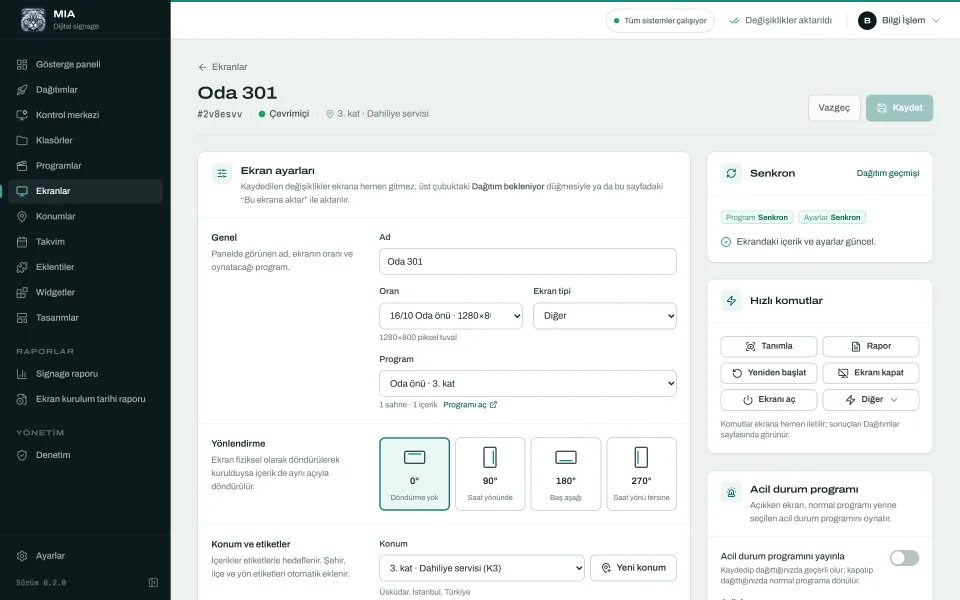
Changes never reach screens on their own. The pending deployment counter (Dağıtım bekleniyor in the Turkish interface) shows what is waiting. Once you start the deployment, the screen receives its program and the deployment record shows its status as successful.
Step 5: autostart, permissions and sleep settings
MIA Player starts when the device boots, runs full screen and keeps the display from sleeping while it plays. A few settings still need checking.
Android 10 and later: display over other apps
Android 10 stopped apps from bringing themselves to the front from the background. For MIA Player to appear after boot, it needs the "Display over other apps" permission. You will usually find it under Settings, Apps, Special app access, although the names vary by manufacturer. Without it, the device boots but stays on the home screen.
Keeping the screen awake
The app keeps the display on from its side, but the TV or box may run timers of its own. Turn off the sleep timer, automatic standby, the screensaver and, on Google TV, ambient mode. Some TVs also switch themselves off after a period without remote input; that option usually sits in the power or energy menu.
When you have finished, the best test is a simple one: pull the plug, wait a minute and plug it back in. The device should return to playback by itself.
Offline playback: when the network or the power goes
MIA Player saves videos and images on the device and keeps a copy of the player page. If the network or the server drops, playback continues. Better still, after a power cut the device starts up and plays the last program even if it cannot reach the server. No warning appears on screen while content is playing.
If the local network is up but the internet is down, widgets such as weather, exchange rates and RSS stay at their last good values. YouTube and web page items need the internet. Because the schedule follows the server's clock, scenes change on time even if the TV's clock is wrong. When the connection returns, the screen fetches pending program and settings updates by itself.
Updates and device owner mode
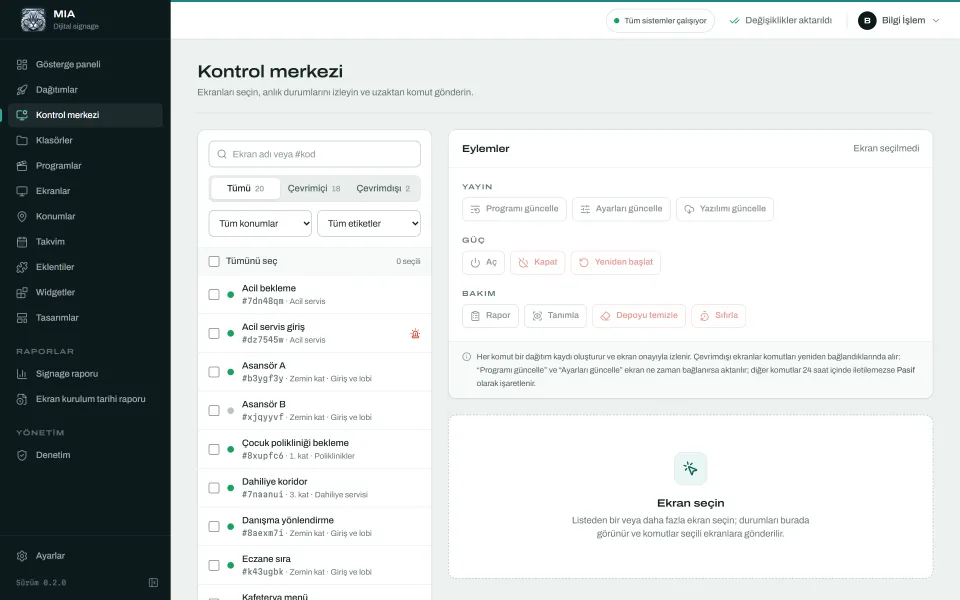
MIA Player updates itself from your server, not from the Play Store. The software update command (Yazılımı güncelle) in the control centre sends a new version to one screen or many, and each player confirms every command it receives.
In a standard installation, Android asks for confirmation on screen before installing the new version, so someone has to accept it with the remote. If you look after many devices, the optional device owner mode removes that prompt and updates install silently. It is set up with adb, and Android only allows it on a device with no accounts on it, which in practice usually means a freshly reset device. Removing it again often takes a factory reset too. For a handful of screens you will not need it; across dozens it saves a great deal of walking.
The control centre also offers restart, screen on and off (a black screen, not a power off), identify, report and clear storage. The complete list is on the features page.
Troubleshooting
| Symptom | Likely cause | Fix |
|---|---|---|
| The APK will not install | Unknown sources not allowed, or an older version with a different signature is installed | Allow the installing app; if needed, remove the old version first |
| No pairing code appears | Wrong server address, or the device cannot reach the server | Type the full address with http or https; test it from a computer on the same network |
| The panel rejects the code | Code mistyped, no licence, or screen limit reached | Check the code, then the licence under Settings, License |
| The app does not come up after boot | Display over other apps permission missing (Android 10 and later) | Grant it, then test by pulling the plug |
| The screen goes dark after a while | The TV's sleep timer, energy saving or ambient mode | Switch those timers off |
| YouTube or a web page will not load | Old WebView, or no internet | Update WebView; check the internet |
| A screen stays pending in a deployment | The screen is offline | Check the network; the screen collects the update when it reconnects |
Tip: turn on offline alerts by webhook or Telegram in the notification settings, so you hear when a screen drops and again when it returns.
With the right device, the right permissions and the TV's own timers switched off, an Android TV screen looks after itself and you only have to think about content. To try it on your own displays, get a 30-day trial licence. When you are ready for more screens, the licence page explains the plans.
Try MIA: 30-day trial license
Install it on your own server, pair your screens and use the whole panel for 30 days.
Get a trial license