
Installing an app on a Samsung Tizen signage display

Apps reach Samsung SSSP signage displays through URL Launcher and a signed package. This guide covers the certificate and DUID, the steps on the display, portrait mounting and the messages you are likely to see.
Samsung's professional signage displays have a computer built in, so they can play content without a box or mini PC behind them. Installing an app on one, however, is nothing like installing an app on a phone. There is no app store. Instead there is a feature called URL Launcher and a signed package. This guide explains how to install MIA Player on a Samsung Tizen signage display, what to watch for when you mount it in portrait, and what the messages you may see during installation actually mean.
What SSSP, Tizen and URL Launcher are
Tizen is the operating system on Samsung TVs and signage displays. SSSP, short for Samsung Smart Signage Platform, is the signage platform on Samsung's professional displays. These displays are built for long operating hours, portrait mounting and remote management.
URL Launcher is the SSSP feature that installs a web app from an address and runs it. The display can start that app straight away at power-on, which turns the display itself into the player with no extra device next to it.
Consumer Samsung TVs do not have URL Launcher. On those, MIA runs in the TV's own browser instead, and Samsung and LG smart TVs from 2018 onwards are supported. The smart TV browser page has the details.
| Display type | How MIA runs | Installation |
|---|---|---|
| Samsung professional signage display (SSSP, Tizen) | Signed MIA Player package | Through URL Launcher, as in this guide |
| Consumer Samsung smart TV, 2018 or later | The TV's browser | Open the player address in the browser |
| LG smart TV, 2018 or later | The TV's browser | Open the player address in the browser |
| Android TV or Android box | MIA Player app | Install the APK |
Why a plain web address is not enough
The obvious idea is to give the display a web address and let it open the player. URL Launcher, however, is not a browser. It looks for a file called sssp_config.xml at the address you enter. That file names the package to install and its version. URL Launcher then downloads the package, a signed web app with the .wgt extension, checks the signature and installs it on the display.
This approach has real advantages in the field. Because the package is installed on the display itself, it starts automatically at power-on, there is no browser bar or menu on screen, and videos can be stored on the display. The price is the signature: unless the package is signed with a certificate Samsung recognises, the display will refuse to install it.
The Samsung certificate and the DUID
Author and distributor certificates
A package for Samsung displays is signed with two certificates. The author certificate identifies who built the package; the distributor certificate states the conditions under which Samsung allows it to be installed. Depending on the type of certificate, the DUIDs of the displays that will run the package are added to it as well.
What the DUID is and where to find it
The DUID is a device ID unique to each display. Depending on the model, you will find it in the support or device information menu. If you are installing several displays at once, note each DUID next to the display's location in a spreadsheet; it helps with the certificate now and with troubleshooting later.
In practice this means that when you add a new display, you may need to send its DUID to MIA so the package can be signed again. Updates must also be signed with the same author certificate as the first installation; a package signed with a different certificate will not install over the existing app. That is why MIA prepares the certificate for your installation and keeps it safe. You do not need a Samsung developer account or any development tools yourself.
The package comes from your own server
MIA prepares the signed package separately for each installation and places it on your MIA server. The package and its sssp_config.xml are published at /tizen/ on your server, for example https://signage.example.com/tizen/. If your server runs in local network mode without a domain, the address starts with its IP instead, for example http://192.168.1.10/tizen/.
Your displays fetch the package from your own server, not from an online store or a vendor's cloud. Content, play logs and the screen list stay on that same server too, so the promise that your data stays with you holds for Samsung displays as well.
Installing on the display, step by step
Menu names vary a little between models and firmware versions, but the order below is the same on most SSSP displays.
Before you install
Connect the display to the network, preferably by cable, and set the date and time correctly: a secure (HTTPS) connection cannot be made with the wrong date. You do not need to trust the display's clock for scheduling, because MIA applies the rules using the server's time. The date only matters for the secure connection.
Installing with URL Launcher
- Find URL Launcher in the home menu and open its settings (URL Launcher Settings).
- Choose Install Web App and enter the
/tizen/address of your server. - When installation finishes, URL Launcher starts MIA Player. The player connects to your server and shows a 6-character pairing code.
- In the system menu, set the option that decides what the display plays at power-on (Play via on most models) to URL Launcher. After a power cut, the display then comes straight back to the player.
- Test by pulling the plug and plugging it back in. The display should return to the player without anyone touching the remote.
Creating the screen in the panel
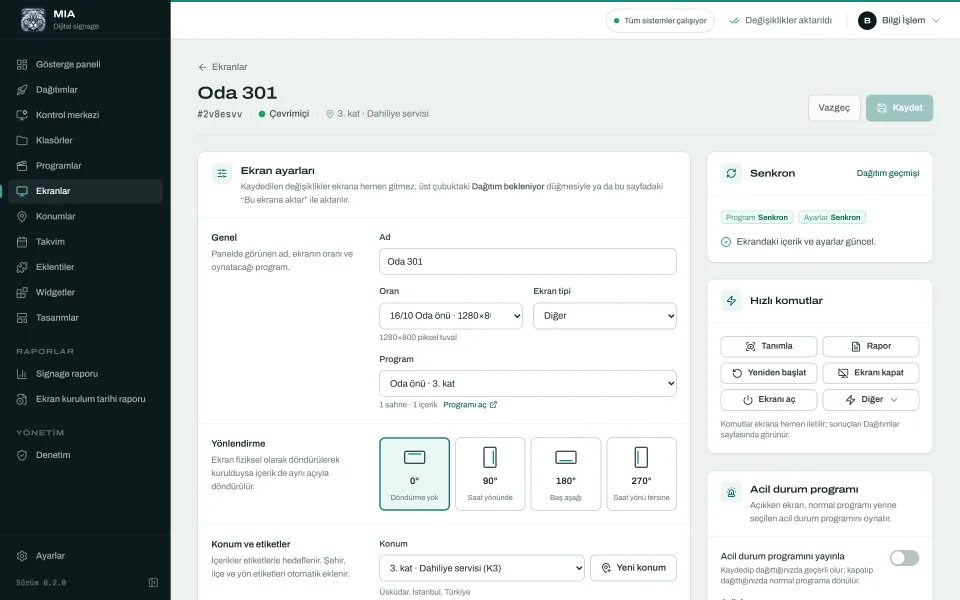
On the Screens page of the panel, add a new screen and enter the code from the display. Give it a name people will recognise on site, such as "Block B lift 2", and choose the aspect ratio, which is 9:16 for portrait. Add the program, the location and tags such as "kat:3" (floor 3); the orientation tag is added automatically. Changes wait under the pending deployment counter, and the screen receives its program when you deploy.
Portrait mounting and the rotation rule
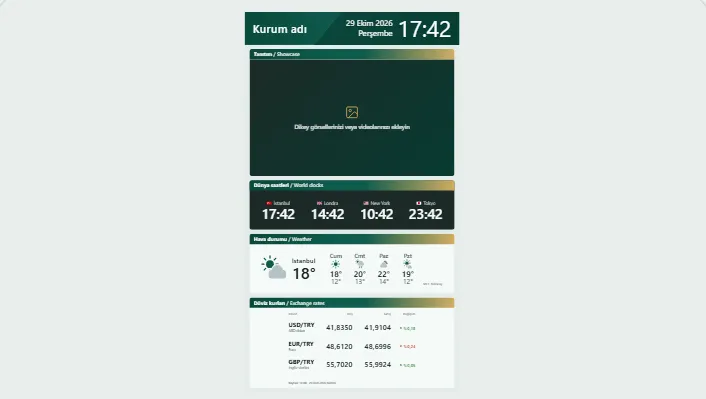
Portrait mounting is common for lift, corridor and entrance screens. A portrait display needs a 9:16 program. MIA's Dikey bilgi ekranı (portrait information screen) design is made for 1080×1920 and gets your first portrait program running in a few minutes.
There are two ways to rotate the picture: in the display's own menu, or in the screen settings in MIA, at 0, 90, 180 or 270 degrees. The rule is simple: use one of them, never both. If both are switched on, the picture turns twice and content appears sideways or upside down. Rotating in MIA has one advantage: you can change it from the panel without visiting the display. Whichever you choose, using the same method on every screen avoids confusion when you add displays later.
Ready scenarios for lifts are on the elevator screens page.
When the network drops: videos stay on the display
A lift car is one of the hardest places for Wi-Fi. It is a metal box, and as it travels between floors the signal weakens and sometimes disappears completely. That is why MIA's Tizen package stores videos and images on the display itself. When the connection drops, playback carries on without a break and no warning appears on screen. In a Wi-Fi outage test in a real lift, playback was not interrupted at all.
You can run the same test yourself: while content is playing, unplug the network cable or switch off the Wi-Fi access point, watch for a few minutes, then reconnect. If the internet is down but the local network is up, weather, exchange rates and RSS stay at their last values, while YouTube and web page items need the internet. When the connection returns, the display fetches pending program and settings updates on its own.
Updates
Content and programs
Content and program changes are deployed from the panel as usual, without touching the display.
The player package
For a new version of the player package, MIA signs it with the same certificate and places it at /tizen/ on your server. URL Launcher installs a package with a higher version number when it sees one, which usually happens when the display restarts. The rest of what the panel can do is on the features page.
Common messages and fixes
| Message or symptom | Likely cause | Fix |
|---|---|---|
| Install failed | The package certificate does not cover this display, for example its DUID is missing | Send the DUID to MIA and install the re-signed package |
| Address cannot be opened, or invalid URL | A typo, /tizen/ missing, or the display cannot reach the server | On a computer on the same network, open the address with sssp_config.xml added to the end; the file should appear |
| Secure connection or certificate error | The display's date and time are wrong | Correct them, or turn on automatic time |
| A new version will not install | Signed with a different certificate, or the version number did not go up | Check the package with MIA; if needed, remove the old app in URL Launcher settings and install again |
| After a power cut the display opens on a TV source | The power-on source is not URL Launcher | Set Play via to URL Launcher in the system menu |
| Picture sideways or upside down | Rotation is set both on the display and in MIA | Keep only one of them |
| Picture small, with empty edges | The program's aspect ratio does not match the display | Use a 9:16 program in portrait and 16:9 in landscape |
| The panel will not accept a new screen | No licence, an expired licence, or the screen limit reached | Check Settings, License in the panel |
Once the installation is done properly, a Samsung signage display plays from its own storage and your own server with no extra hardware, and nobody watching will notice when the network drops. MIA prepares the signed package for your installation, leaving you only a few settings on the display. For supported models and more detail, see the Samsung SSSP and Tizen page, or get a trial licence to try it on your own screens.
Try MIA: 30-day trial license
Install it on your own server, pair your screens and use the whole panel for 30 days.
Get a trial license